|
With Windows 7, you can easily schedule tasks like automated backups
|
| 1. |
Click the Start button |
| 2. |
Type in task |
| 3. |
It should show Task Scheduler as the program to run |
| 4. |
This is actually running the taskschd.msc program in the system32 directory |
| 5. |
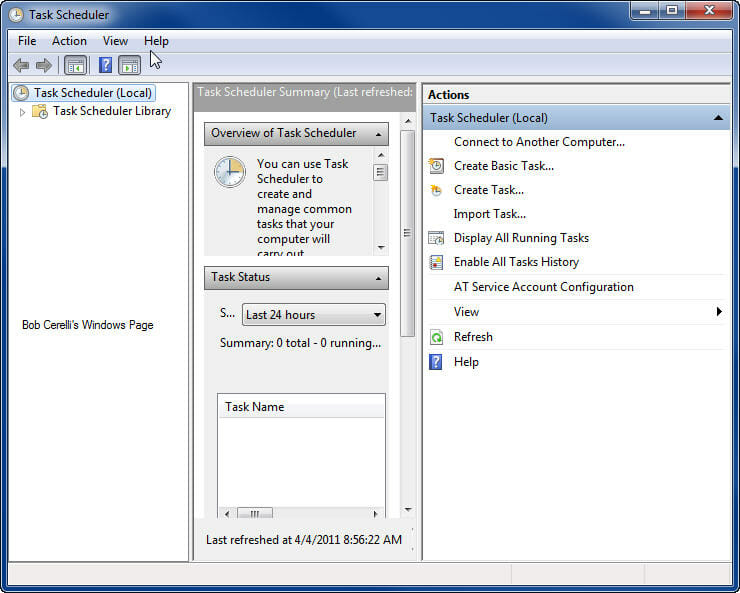
This should bring up a window similar to the one below |
 |
| 6. |
The following will the instructions for how to add something like a batch file that will run at a certain day and time to do a backup |
| 7. |
The easiest way is to click on Create Basic Task… |
| 8. |
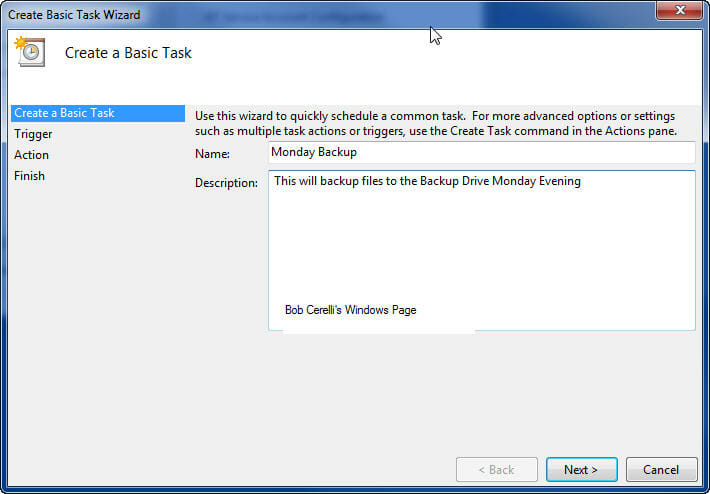
Type in the Name and Description for the task. Then click on the Next button |
 |
| 9. |
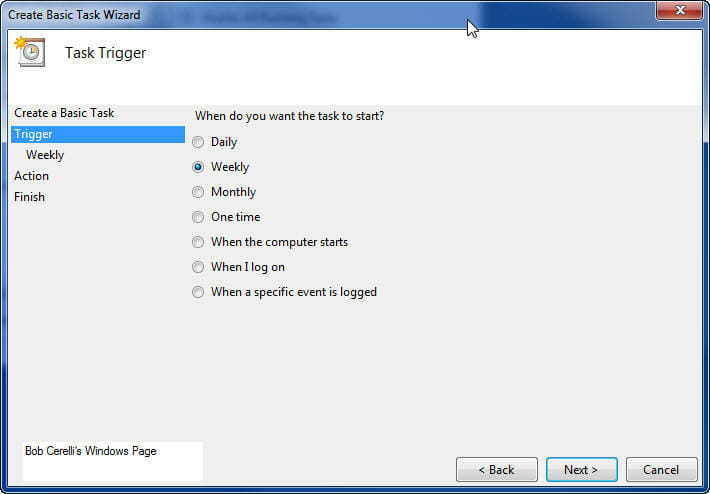
Then type in when you want the task to start. Since the example is for a Monday backup, the Weekly box is checked. Click on the Next button |
 |
| 10. |
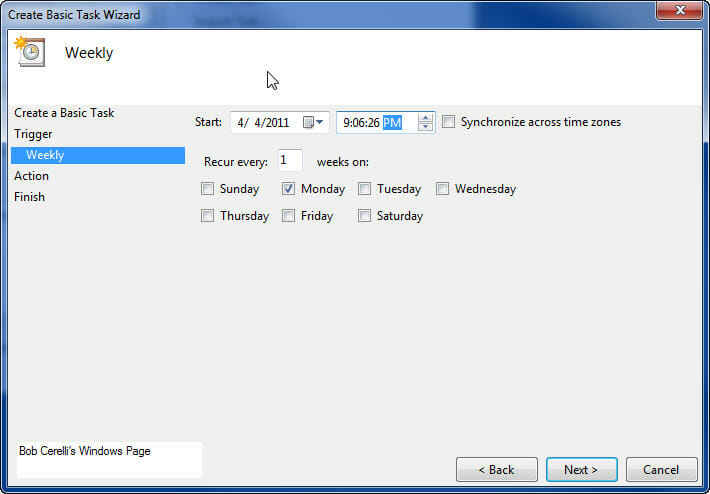
Since the example is for a Weekly event, check the time, how often it is to recur and the day you want it to run. |
 |
| 11. |
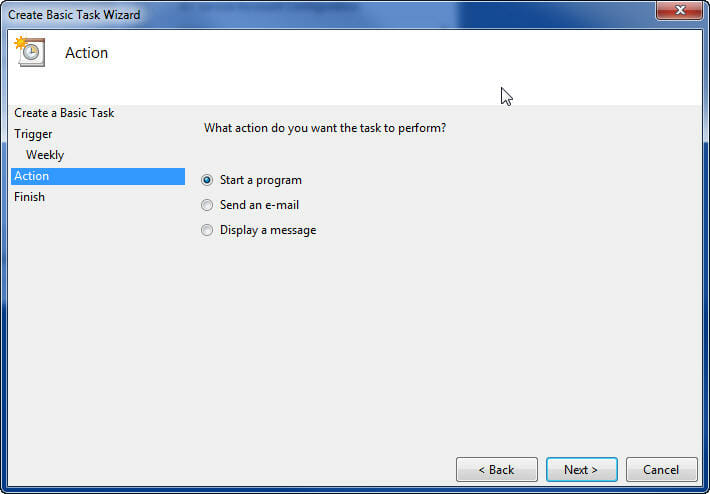
For the action, select Start a program (since in this example, a batch file will be run) |
 |
| 12, |
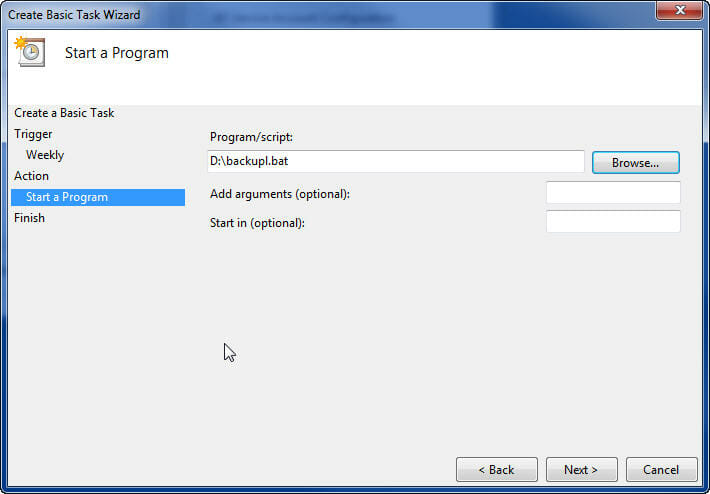
Next browse to where the batch file or program is located. |
 |
| 13. |
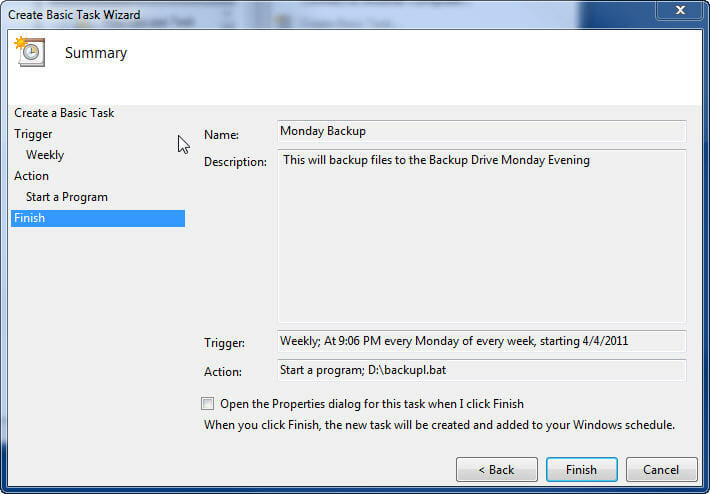
Click on Next and you will see everything you configured on one screen |
 |
| 14. |
This is hopefully a good starter for you to start scheduling tasks. If you select Create Task rather than a Basic Task, there are more options available as well. |



