
There may be times where you want to change the default location of a user’s My Documents folder. For example, I keep all my data on a D: partition. This way should I need to reinstall the operating system on the C: partition, no data is lost |
|
| 1. | Click on the Start button |
| 2. | Right click on Documents |
| 3. | Select Properties |
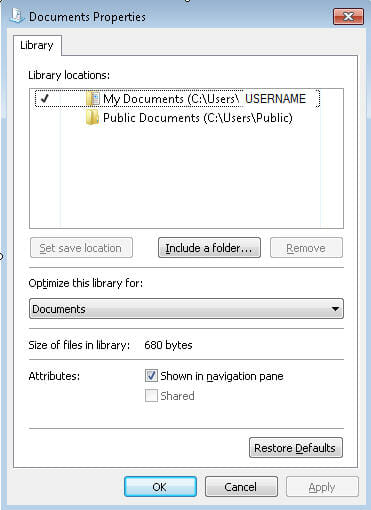
| 4. | This will bring up a similar window. USERNAME will be replaced by the actual user’s login name |
 |
|
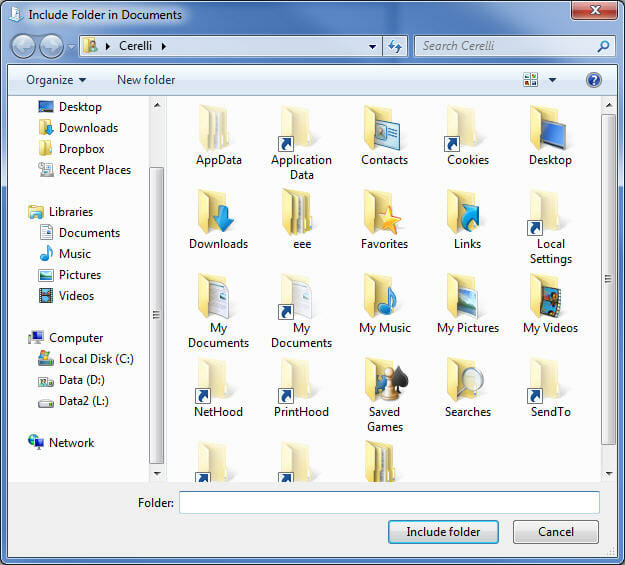
| 5. | Click on Include a folder… |
| 6. | This will bring up a similar window |
 |
|
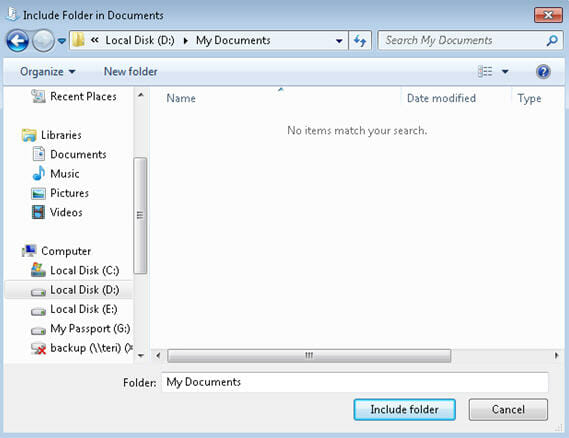
| 7. | Browse to the location where you want to change the location |
 |
|
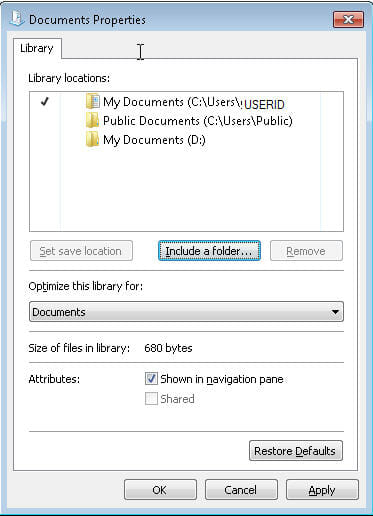
| 8. | Click on Include folder. This will bring up a similar window to the one below |
 |
|
| 9. | Highlight the folders you don’t want and click on the Remove button |
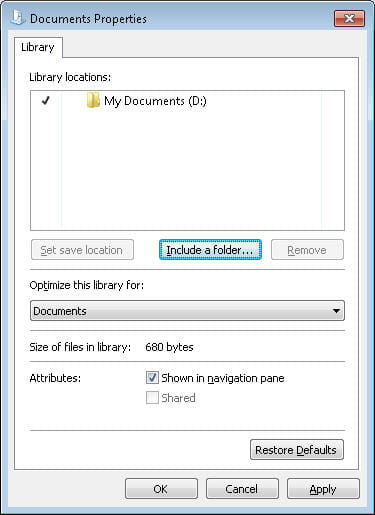
| 10. | Then you should only see the new location you want for your My Documents folder |
 |
|
Home Changing Windows7 My Documents Location


