With Windows 7, you can now calibrate the Gamma, Brightness,
|
|
| 1. | Right click on the Desktop |
| 2. | Select Personalize |
| 3. | On the bottom left, click on Display |
| 4. | On the top left, click on Calibrate Color |
| 5. | Click on Next / Next |
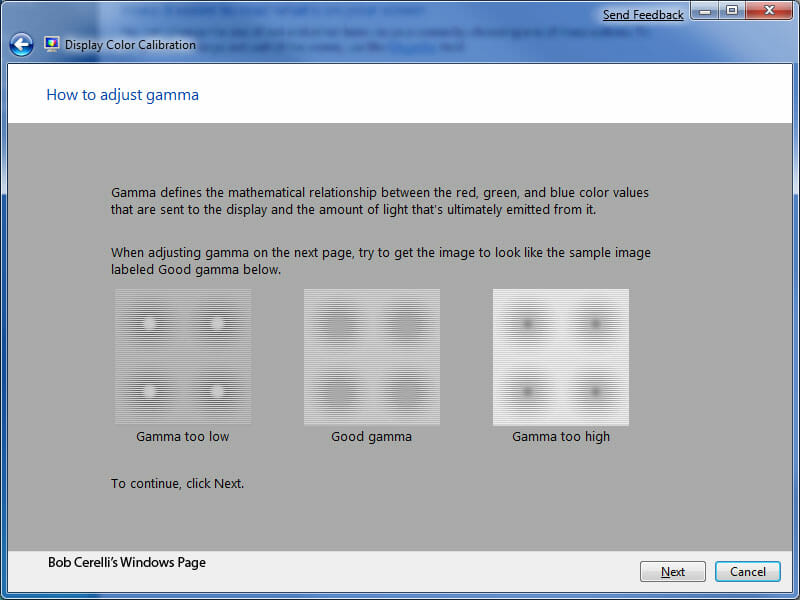
| 6. | You will be shown a sample of what a Good Gamma setting should look like. Click on the Next button |
|
|
|
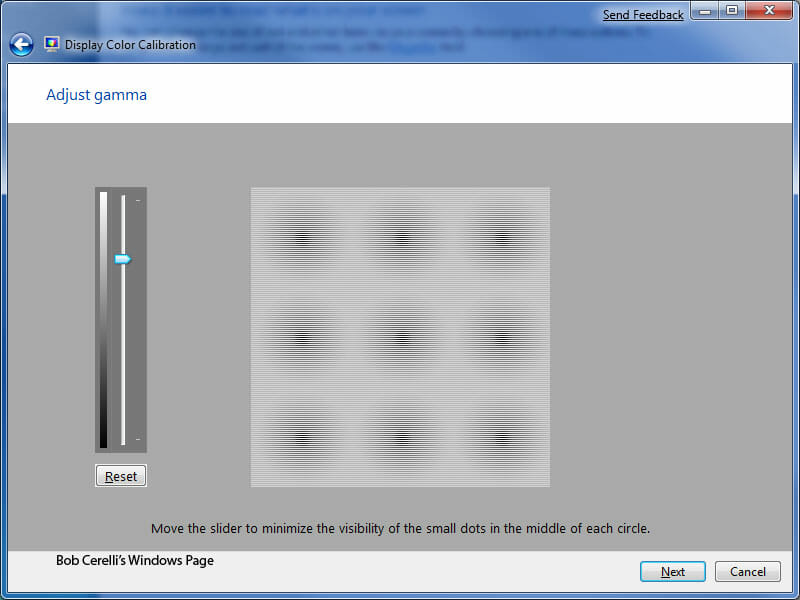
| 7. | Adjust the slider on the left side to make it as close to the Good gamma setting as you can. Click on the Next button. |
|
|
|
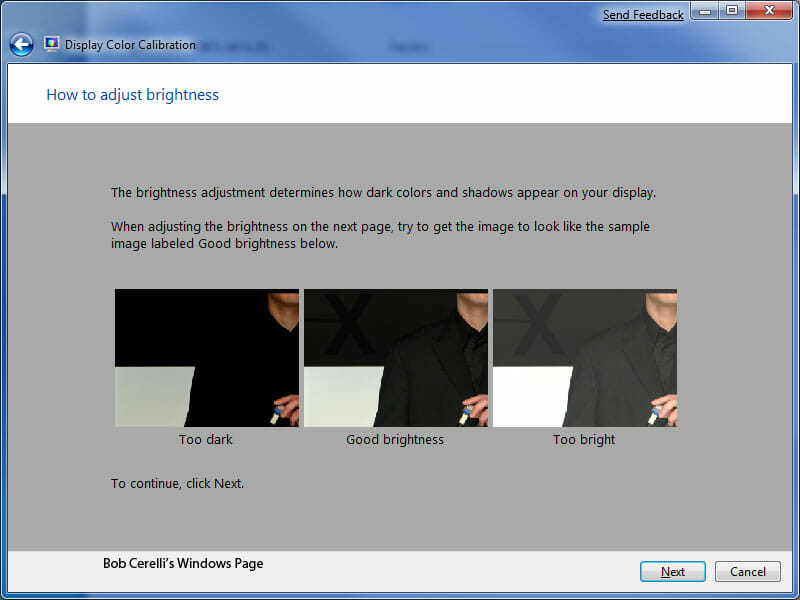
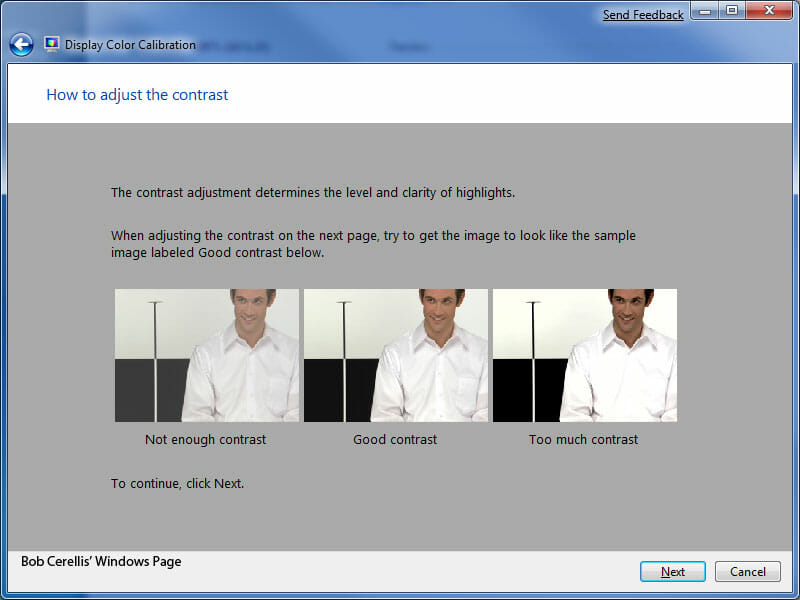
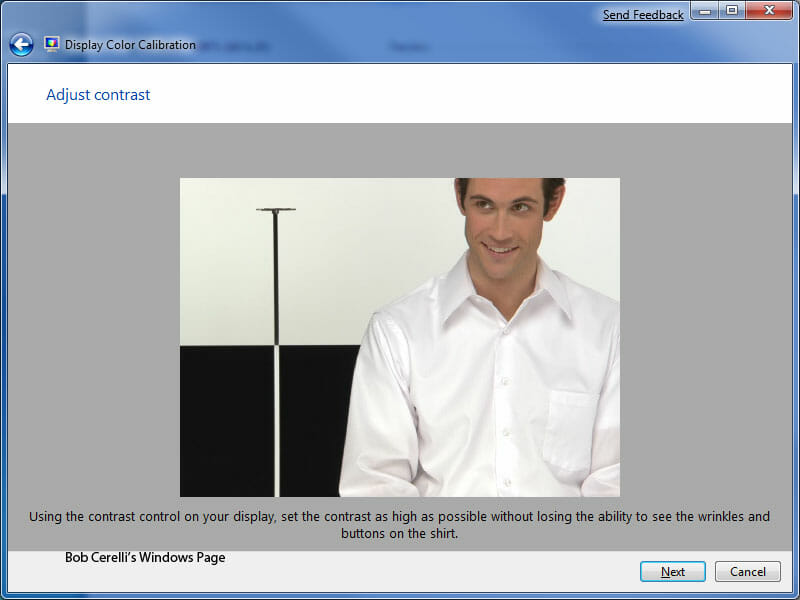
| 8. | Next you have the option to adjust the brightness and contrast. Next |
|
|
|
|
|
|
|
|
|
|
|
|
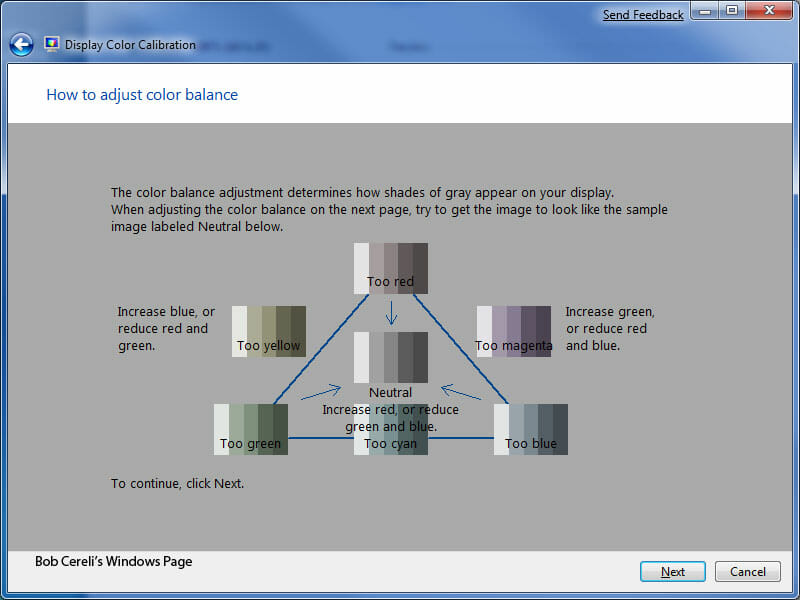
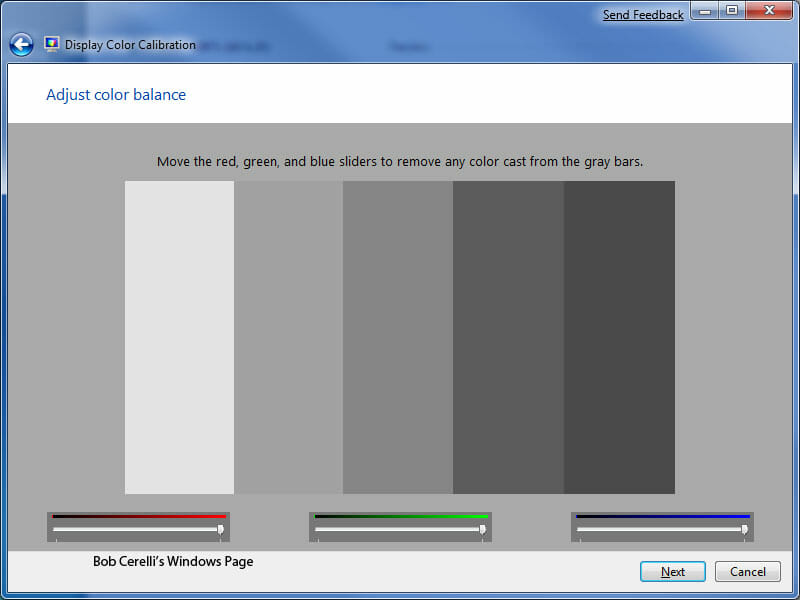
| 9. | To set the Color Balance, adjust as described |
|
|
|
|
|
|
|
|
|
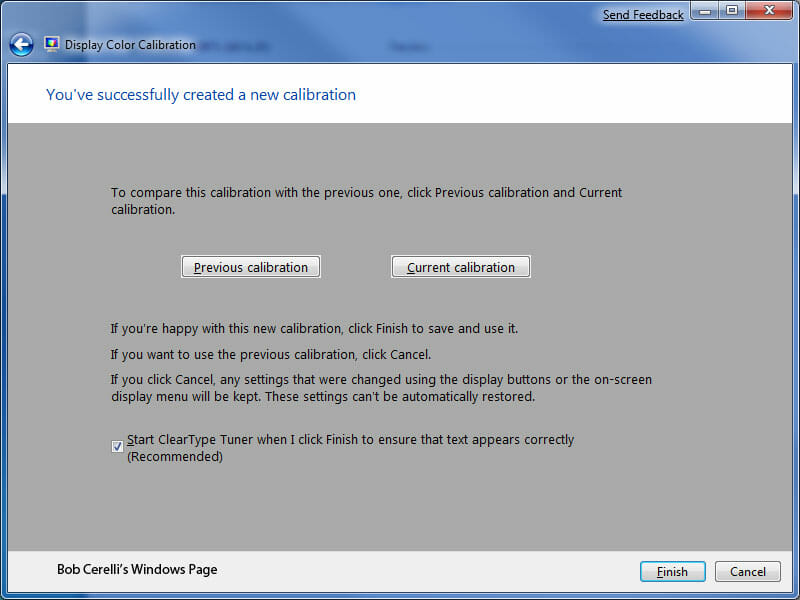
| 10. | While it may not do as exact as other 3rd party programs, it does go a long way to making your monitor display correctly |
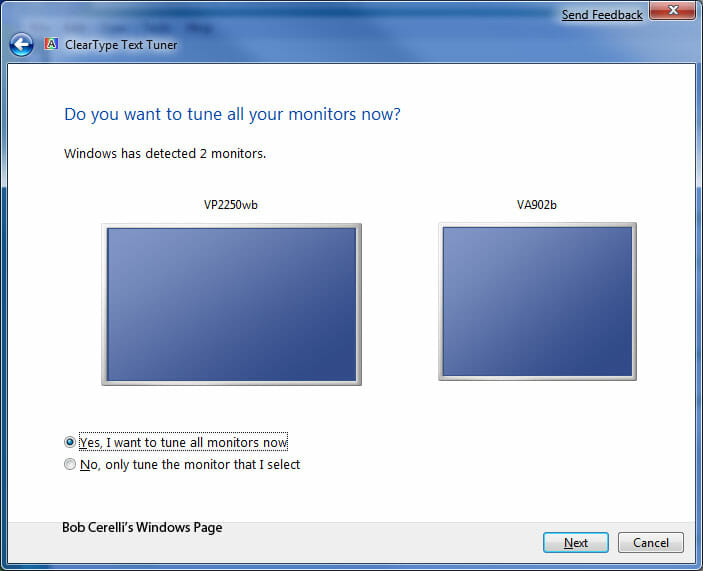
| 11. | Then it launches into the ClearType Text Tuner. This lets you set how you want your ClearType to look. If you have multiple monitors, it lets you set different settings for each. |
|
|
|
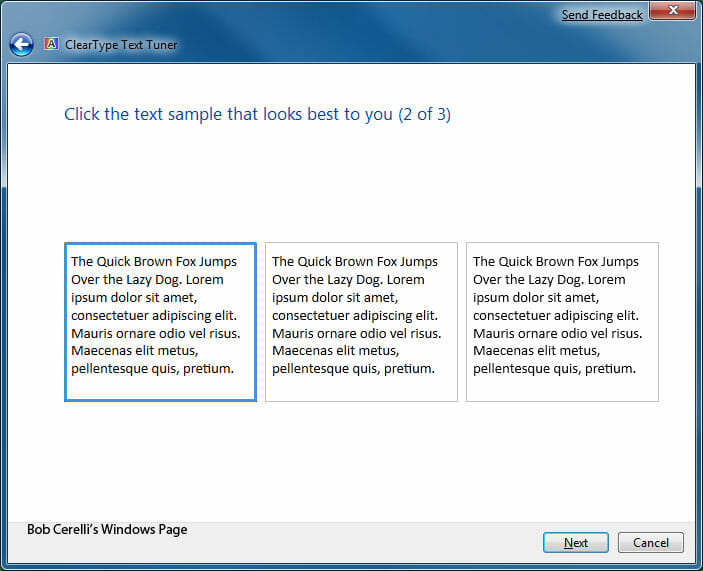
| 12, | The basics are you will be presented with a series of screens with text on it. You pick the one that looks best for you. |
|
|
|
| 13. | Do this for all the screens and for all your monitors. |
Home Windows 7 Calibrating Your Monitor’s Color