Configuring Outlook
E-Mail Options
|
There are a variety of options you can use to configure how e-mail is handled in Outlook.
This is in several places that can be difficult to remember.
Hopefully the following section will help. The Basics Are:
-
Changing Your View
-
Adding a Signature
-
Turning on the Spell Checker
-
Automatically Emptying Deleted Mail
-
Using Boilerplate Text
|
Changing Your View
By default, Outlook used the Outlook Bar across the left hand portion of the window.
In addition, the Preview option is set to automatically show the first few lines of each e-mail in the lower right section.
To change these settings: |
| 1. |
Select View |
| 2. |
From here you can select Outlook Bar or the more familiar Folder List |
| 3. |
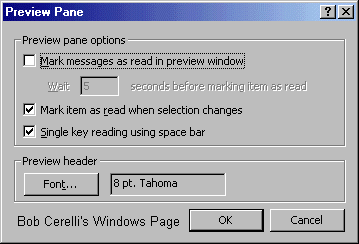
You can also have the Preview Pane – Which shows the first few lines in the lower right corner. Given the types of viruses, I would recommend turning off the Preview pane. |
| 4. |
The other option is AutoPreview – This shows the first few lines right below each e-mail |
Turning on the Spell Checker
By default, Outlook does not spell check your e-mail. To turn this feature on: |
| 1. |
Go to Tools / Options |
| 2. |
Click on the Spelling tab |
| 3. |
Check Always check spelling before sending |
 |
Automatically Emptying Deleted Mail
By default, Outlook does not remove files from the Deleted folder when you exit the application. To do this: |
| 1. |
Go to Tools / Options |
| 2. |
Click on the Other tab |
| 3. |
Check Empty the Deleted Items folder upon exiting |
 |
| When you exit Outlook, you will now be prompted if you want to empty the Deleted Folder items. If you do not even want to be prompted and just have them automatically deleted: |
| 4. |
Click on the Advanced Options button |
| 5. |
Uncheck Warn before permanently deleting items |
 |
Using Boilerplate Text
If you need to frequently use the same replies for e-mail, you can insert prepared text into your e-mails. This involves two steps. First is to create the text. Second is to insert it into your e-mail
|
Creating the Text
By default, Outlook will look at the My Documents folder for the text so this is where you will create your text files.
|
| 1. |
Open up the Explorer |
| 2. |
Go to the My Documents folder |
| 3. |
Right click on the right side |
| 4. |
Select New / Text Document |
| 5. |
Give it a name that will reflect the type of text you will use. Make sure you leave the .txt extension |
| 6. |
Double click on the file which will open up Notepad to a blank screen |
| 7. |
Enter in the text you want to use |
| 8. |
Select File / Save and exit Notepad |
| Inserting the Text
This is where you will insert the boilerplate text into your e-mail |
| 1, |
Click on wherever you want your text to go into your e-mail |
| 2. |
Select Insert / File |
| 3. |
Scroll to the file you want to insert and just highlight it. If you double click it will insert as an attachment. |
| 4. |
Depending on the version of Outlook you have either select Insert as Text or click on the down arrow by the Insert button and select Insert as Text |
Additional Configuration Options
E-Mail Options
|
| Tools / Options / E-Mail Options Button |
 |
After Moving or Deleting an Open Item:
-
Open Next Item
-
Open Previous Item
-
Return to the Inbox
|
When Replying or Forwarding Messages:
-
Do Not Include Original Message
-
Attach Original Message
-
Include Original Message Text
-
Include and Indent Original Message Text
-
Prefix Each Line of the Original Message
|
Mail Format
|
|
Tools / Options / Mail Format Tab
|
|

|
Change the:
|
Fonts
|
|
Tools / Options / Mail Format Tab / Fonts Button
|
 |
Change the:
|
Other Options
|
|
Tools / Options / Other Tab
|
|

|
Change:
|
 |
Other Options / Advanced Options
|
|
Tools / Options / Other Tab / Advanced Options Button
|
 |
Change:
-
Warn before permanently deleting items
-
Automatically select entire word
-
Provide feedback with sound
|
This site is copyrighted. No portion may be reproduced without my written permission.





