|
|
/n, – Opens a new Explorer window
|
This will be at the current directory
It will show a single pane with your files and folders of the current directory |
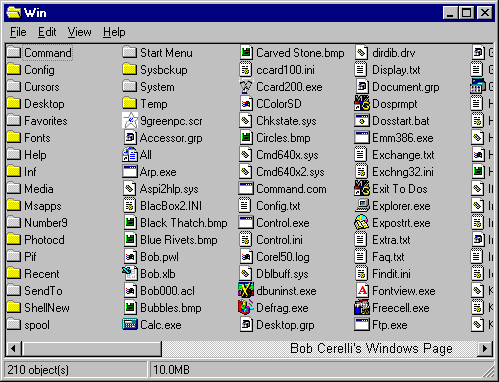
/e, – Opens expanded folder
|
| This options show the typical two pane display |
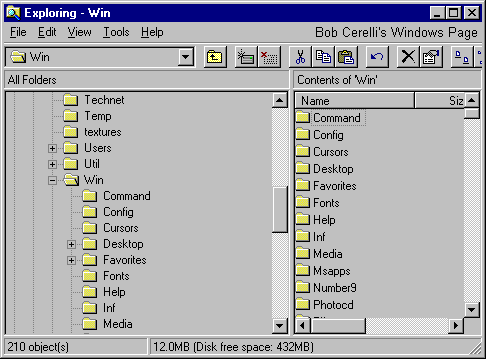
Options
|
/root – Selects a folder as the root of the explorer tree
|
-
The root any drive is the Desktop.
-
To illustrate the difference between using /root and leaving it out,
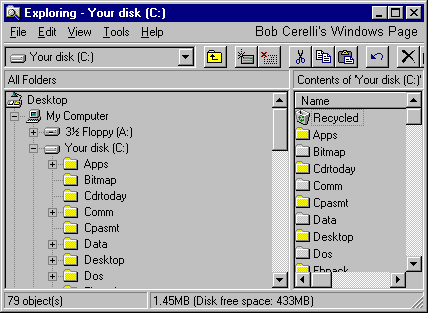
The following sample was made using EXPLORER /n, /e, c:\
-
Note the inclusion the Desktop, My Computer and the floppy drive Your Disk C:\
-
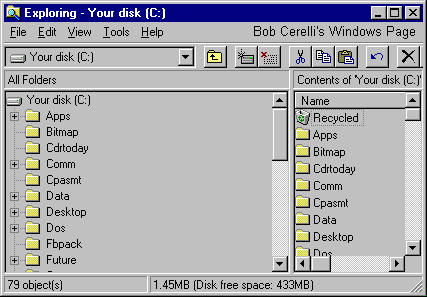
The following example includes the /root – EXPLORER /n, /e, /root, c:\
-
Note the difference between the two examples.
-
Your Disk (C:) is now the top most of the display, rather than Desktop
|
/Select – Displays a folder’s parent directory
|
-
This will display a selected folder’s parent folder
-
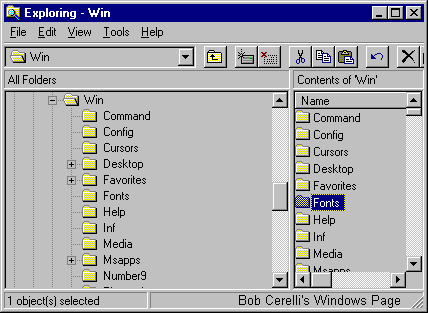
For example EXPLORER /n, /e, /select, C:\WIN\FONTS
-
Note how Win is the selected folder, one above the Fonts folder.
|
Other examples:
|
The default Explorer setting is EXPLORER.EXE /n, /e, C:\
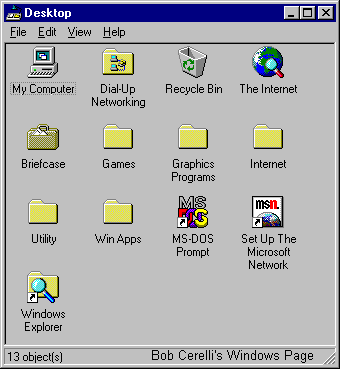
The Desktop is EXPLORER /n, /root
|
This site is copyrighted. No portion may be reproduced without my written permission.



