
WindowsXP Service Pack 2
|
|
|---|---|
Internet Explorer Pop-Up Blocker |
|
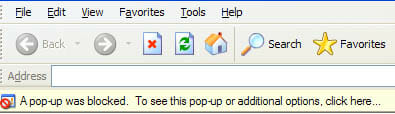
| 1. | If a web page is opened that would normally start opening additional pop-up windows, IE will finally now be able to stop them automatically. |
| 2. | The default setting is for an information bar to show when a pop-up is blocked. |
|
|
|
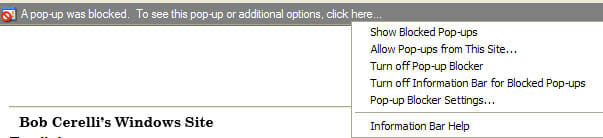
| 3. | If you click on the information bar, you have several options available |
|
|
|
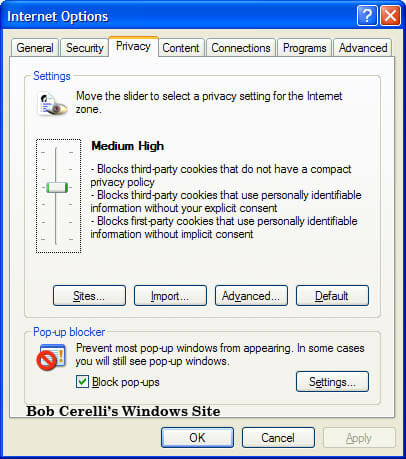
| 4. | If you want to change the setting automatically, go to Tools / Internet Options / Privacy. At the bottom is now an option for the Pop-up blocker to be turned on or off |
|
|
|
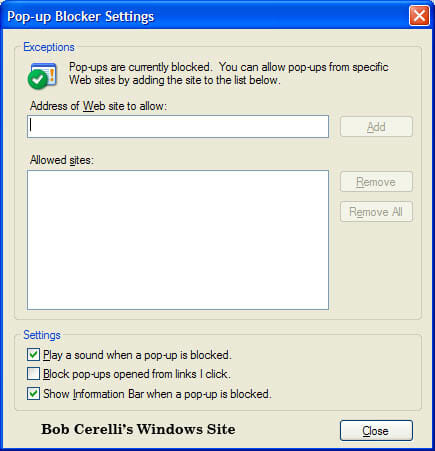
| 5. | Click on Settings for additional options. |
|
|
|
Better Firewall |
|
|---|---|
| 1. | You can get to the new Firewall from Start / Settings / Windows Firewall |
| 2. | This is much more configurable than previous versions. While it may not do everything that some of the 3rd party programs do, it is certainly much better than before and fairly easy to use. |
|
|
|
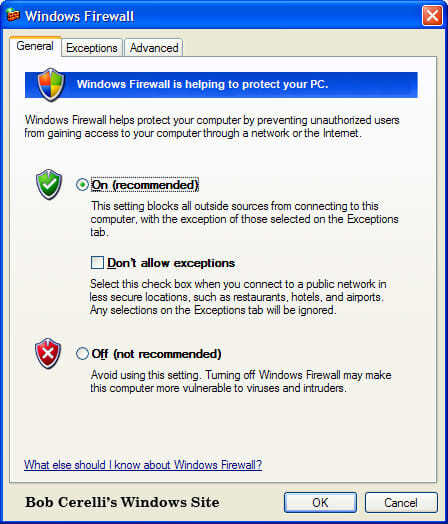
| 3. | There are basically three settings:On (Recommended) – This default setting should work well for most users.
Don’t allow exceptions – Use this when in less secure locations. This would be good when connecting to a wireless network and want to prevent any access to your computer Off – This turns the firewall off. I would use this for testing local network or Internet problems until they are resolved. Then turn it back on again. |
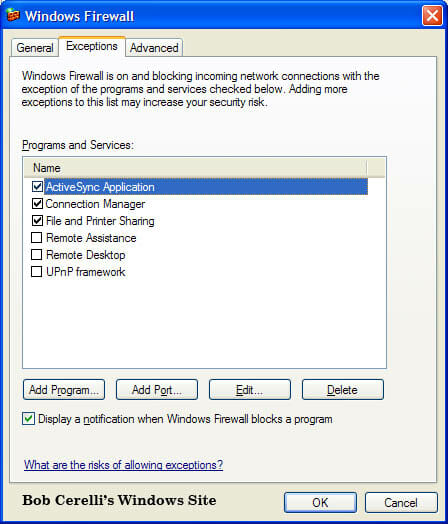
| 4. | You can assign exceptions to the firewall. For example, I needed to add in the ActiveSync Application for the connection to my PDA. |
|
|
|
| 5. | You can edit existing exceptions. For example with File and Printer Sharing, click on the Edit button |
|
|
|
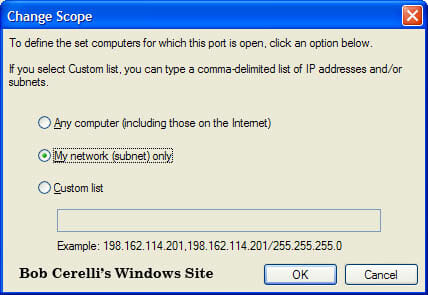
| 6. | Changing the Scope allows even more options |
| 7. | Adding programs will add those programs you want to be able to access the Internet. If you try to use one, or as with many Spyware and Trojan Programs, one starts to try and access the Internet without your knowledge, you will be prompted with the name of the program and whether or not you want to allow access. |
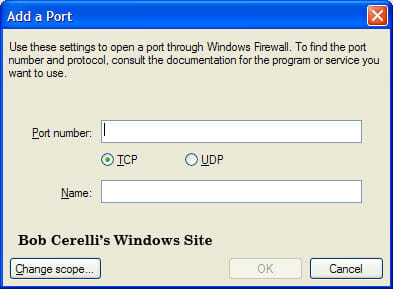
| 8. | Adding a Port will open up ports through the firewall. This can be useful if you have remote access software or VPN connections that need to have specific ports opened up. |
|
|
|
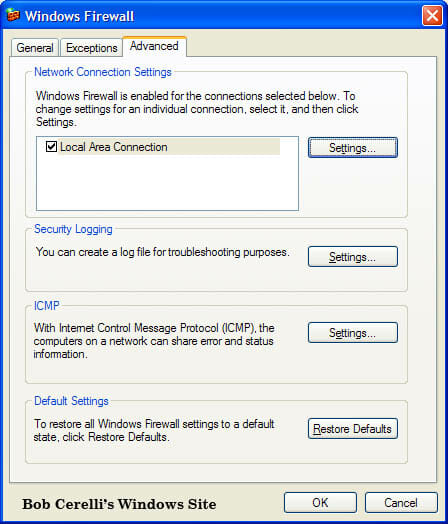
| 9. | The Advanced tab allows you to change specific settings |
|
|
|
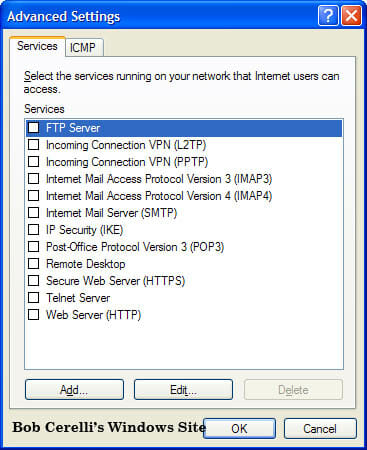
| 10. | For example, clicking on the Local Area Connection / Settings tab, allows the following default connections to be added. Additional ones can be created as well. |
|
|
|
| 11. | To see all the firewall settings that are in place; Open a cmd prompt Run netsh firewall show configTo get a list of all the new commands available: Open a cmd prompt Run netsh firewallFor example, you can look at just what ports you have open, what services are allowed, the general state as well as quite a few other options. |
Automatic Updates |
|
|---|---|
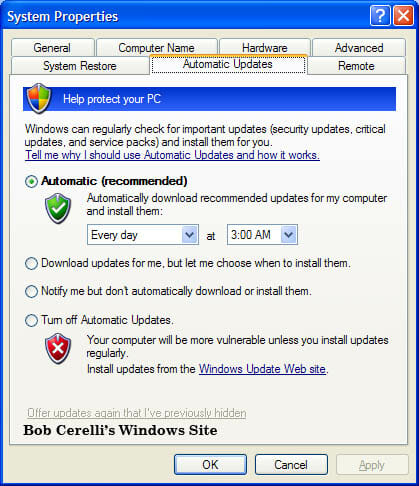
| 1. | Automatic Updates (My Computer / Properties / Automatic Updates tab), now defaults to automatically update at 3:00 AM. Given the amount of problems what would have been solved if computers had been kept current, this is always a good practice. |
|
|
|
| 2. | You can easily change the time of the updates as well as how you want to be notified or how the updates are going to be processed. |
| 3. | If it is configured to Download but choose when to install, if there were any updates, and you shutdown your computer, first you will be prompted if you want to automatically install them on the next reboot. |
Other Features |
|
|---|---|
| 1. | Safer E-Mail with Outlook Express and Windows Messenger – Potentially unsafe attachments that are sent through e-mail and instant messages are isolated so that they cannot affect other parts of the system. |
| 2. | The Messenger Service, a potential source of Internet pop-up windows, is disabled by default. |
| 3. | It looks like many of the security holes that allowed attacks like the recent MSBLASTER have been improved |
Learn to SlipStream SP2 into your current source files
This site is copyrighted. No portion may be reproduced without my written permission.


