| The following page details the steps necessary to create a Windows7 Remote Desktop Connection
Remote Desktop allows you to take control of another computer on your local network or across the Internet |
|
Configuring the Windows7
|
|
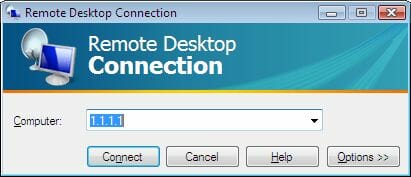
| 1. | Go to Start / All Programs / Accessories / / Remote Desktop Connection or Start / mstsc.exe |
|
|
|
| 2. | Enter in the IP address of the computer you want to connect to |
| 3. | If it is a computer on your LAN, just enter the computer’s LAN IP address |
| 4. | If it is a computer you want to access over the Internet, you need to enter in the Public IP address of the HOST’s Internet connection. You would also needed to have configured the HOST for Remote Desktop accss. |
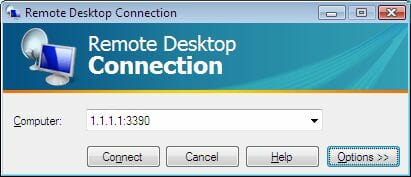
| 5. | If this is a computer with a different port than the default you want to connect to, in addition to entering the IP address, you would also need to include the Port number. |
|
|
|
| 6. | Click on the Connect button |
| 7. | At the login screen, enter the name and password of a user that has remote access on the host |
| 8. | If you want to click on the Options button, you can configure it for things like automatic logon, size and amount of colors (less improves performance).You can also save shortcuts to your Desktop for future use |