
Sometimes you may need to copy files that were “owned” by another user. |
|
| 1. | Right click on the Directory with the files you want to take ownership |
| 2. | Select Properties |
| 3. | Click on the Security tab |
 |
|
| 4. | This will bring up the list of current users. |
 |
|
| 5. | Click on the Advanced button |
| 6. | Click on the Owner tab. This will show the current owner |
 |
|
| 7. | To change the ownership, click on the Edit button |
| 8. | Click on Other users or groups |
 |
|
| 9. | Click on the Advanced button |
 |
|
| 10. | Click on the Find Now button |
 |
|
| 11. | Locate the user that you want to have take ownership and click on the OK button. In the following example, I selected Everyone |
 |
|
| 12, | Click on the OK button again |
 |
|
| 13. | With that user selected at the following screen, check Replace owner on subcontainers and objects and click on the OK button |
 |
|
| 14. | You then see the computer start to take ownership of all the files in that directory. |
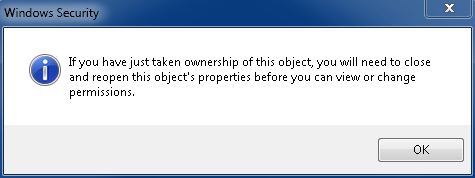
| 15. | When it is finished, you will see the following screen. |
 |
|
This site is copyrighted. No portion may be reproduced without my written permission.


